
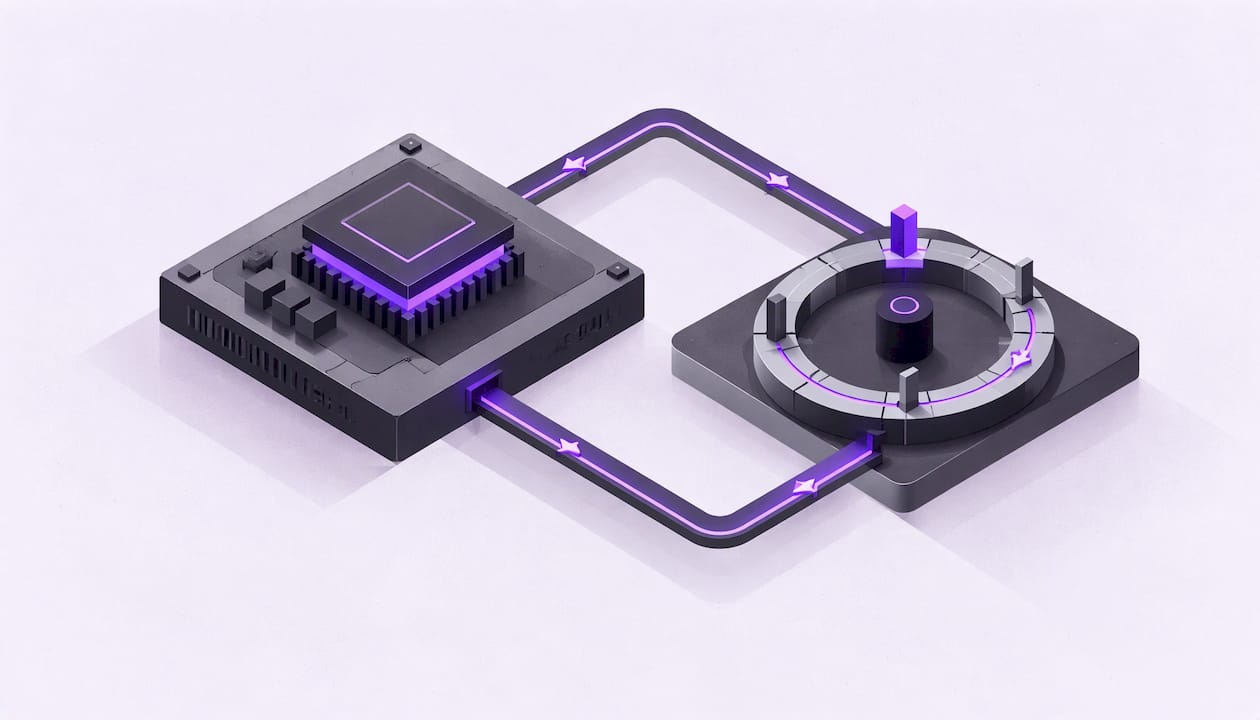
VM speed is the setting that controls how often the Cronus Zen's Virtual Machine runs your script's main loop. According to the official Device Monitor guide, it adjusts in real time between 1ms and 40ms, and the default is 10ms. A lower number means the script runs more often. A higher number means it runs less often. It is not a power setting, and a well-built script already ships with a value that suits it. Our Fortnite Cronus Zen Script is built on GPC (the scripting language the Zen reads), with its timing handled in the script, so you can start from a working configuration instead of tuning timing by hand.
TL;DR
- VM speed is how often the Zen's Virtual Machine runs your script: 1ms to 40ms, with a 10ms default.
- You change it in Device Monitor (Zen Studio, Tools menu) while the Zen is connected to a PC through the PROG USB port.
- A scripter can also shift the interval from inside a script with the
vm_tctrlfunction, within a range of -9 to 30 relative to the normal interval. - Faster is not automatically better: shorter intervals add work for the Zen, so watch CPU load and keep it under 80%.
- VM speed is separate from polling rate, game frame rate and in-game sensitivity. Each game also has its own rules on controller hardware.
Table of Contents
- What VM speed actually is
- The numbers to know
- VM speed versus the other numbers people confuse it with
- How the script itself can change the timing
- Where to check or change VM speed
- How to tell whether a script runs as intended
- A worked example
- Does a Cronus Zen give you aim assist?
- Know each game's rules before you play
- Starting from a script that is already tuned
- Practical rules for VM speed
- FAQ
- Sources
What VM speed actually is
A Cronus Zen sits between your controller and your console or PC. Scripts written in GPC are compiled into bytecode, which is a compact set of instructions the device can run. Cronus's GPC documentation explains that this bytecode is executed by a stack-machine Virtual Machine, tailored for processing and modifying controller signals in real time.
Think of the Virtual Machine as a small engine inside the Zen. Every cycle, it reads your controller's input, runs your script's main block once, and sends the result onward. VM speed is the length of that cycle. At the 10ms default, the engine completes about 100 cycles per second. At 5ms it completes about 200, and at 40ms about 25.
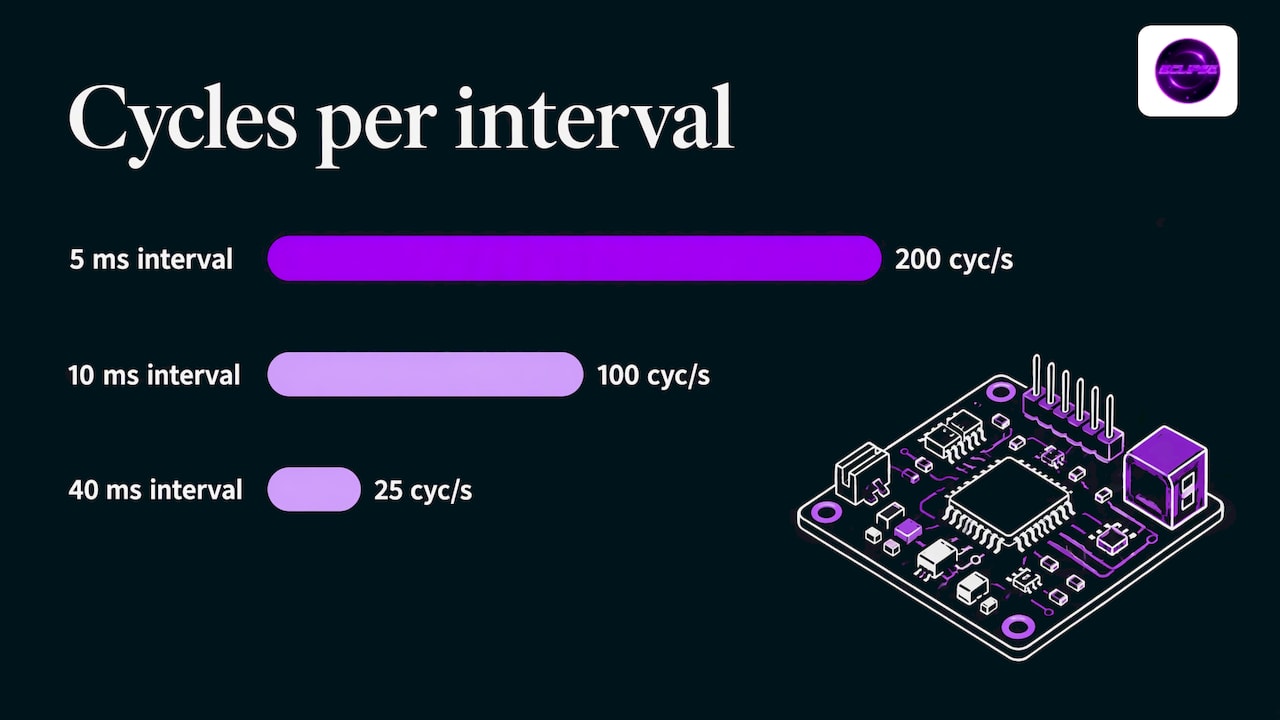
That arithmetic is simply 1000 divided by the interval in milliseconds. It shows why the setting matters for anything timing-sensitive, such as rapid inputs, recoil compensation or movement sequences: the script can only act once per cycle.
The numbers to know
| Item | Value | Where it comes from |
|---|---|---|
| VM Speed range | 1ms to 40ms | Device Monitor guide |
| Default VM speed | 10ms | Device Monitor guide |
vm_tctrl offset range | -9 to 30 | GPC device functions |
| CPU load to stay under | 80% | Device Monitor guide |
The official guide describes VM speed as a feature for experienced scripters. That is a fair summary: most players never need to touch it, because the default is chosen for stability.
VM speed versus the other numbers people confuse it with
Searches for this topic often mix up several different timing and sensitivity terms. Here is how they separate.
VM speed and polling rate
Polling rate is how often a controller or the console asks for and reports input. It belongs to the controller and the platform. VM speed belongs to the Zen's internal script engine. Changing one does not change the other.
VM speed and frame rate
Frame rate is how many images the game draws per second. It depends on your console or PC and the game's settings. The Zen does not alter it. A script running every 5ms does not make the game render faster, and a slower VM does not lower your frames.
VM speed and sensitivity
Sensitivity decides how far the camera moves for a given stick deflection. Scripts can include custom sensitivity settings, but that is a value inside the script's logic. VM speed only decides how often that logic is evaluated. A sensitivity value of 1.2 behaves the same way whether the script runs every 10ms or every 8ms, though the update granularity differs.
What VM speed does not do
Changing VM speed does not unlock new features, add aim assist where none exists, or fix a badly written script. In Fortnite, aim assist is a game feature tied to controller input. A script alters or times the signals your controller sends. VM speed only changes how often the script gets to do that. It is a timing parameter, nothing more.
How the script itself can change the timing
VM speed in Device Monitor is one way to adjust the interval. GPC offers another from inside the script. The function vm_tctrl sets the VM timeout for the next main iteration. According to the official GPC documentation, the VM runs the main loop every 10 milliseconds by default, and the offset you pass in ranges from -9 to 30. For example, vm_tctrl(-5) runs the VM every 5 ms.
The same page warns that changing it may cause instability within the script. The newer official guide says the same in practical terms: shorter intervals increase VM work and may reduce stability, so measure VM load and controller behavior before keeping a non-default value.
There is also get_rtime, which per the GPC device functions page returns the elapsed time in milliseconds between the current and previous main-function iterations. Scripters use it to confirm that the loop is actually running at the interval they expect, which is far more reliable than assuming.
Where to check or change VM speed
You need a Windows PC. The official requirements page lists Windows 10 or 11 for Zen Studio, plus a good internet connection for the GPC Scripts Library, GamePacks and firmware updates.
- Connect the Zen to your computer. Use the PROG USB port. The Zen Studio menu bar guide states the Zen must be connected through the PC PROG USB port for the Device Monitor menu item to work.
- Open Zen Studio and go to the Tools menu. Select Device Monitor.
- Find VM Speed. The Device Monitor documentation says it adjusts in real time, from 1ms to 40ms.
- Read the CPU Load figure before and after any change. Below 80% is acceptable, and it means the processor can perform its tasks on time without delays or lag.
- Return to 10ms if anything feels off. The default exists because it is stable.
Where this goes wrong is step 4. People lower the interval, feel the script is more responsive, and never look at the load number. The GPC overview states that keeping CPU load below 80% is crucial to prevent output delays to the console. When load climbs past that line, the Zen can fall behind, and the result is the opposite of what you wanted: late or uneven output.
How to tell whether a script runs as intended
A script can look fine in the editor and still behave strangely in practice. Use these checks after any timing change.
- Watch CPU load in Device Monitor. Stay under 80%. If it rises after you shorten the interval, the interval is too aggressive for that script.
- Test in a private or practice setting first. Look for stutter, delayed button response, or actions that fire twice or not at all.
- Compare against the default. Set VM speed back to 10ms and repeat the same motion. If the script feels the same or better, the faster setting was not helping.
- Log the loop time. If you write or edit scripts,
get_rtimetells you the real time between iterations. - Change one thing at a time. Moving VM speed and a sensitivity value together makes it impossible to know which caused a difference.
A script that was designed around the 10ms default usually has its timers, delays and rapid-input counts calculated for that interval. Changing the VM speed shifts all of them. A rapid-fire sequence tuned for ten cycles per 100ms will behave differently when cycles come faster or slower. This is the most common reason a script "stops working" after someone experiments with timing.
A worked example
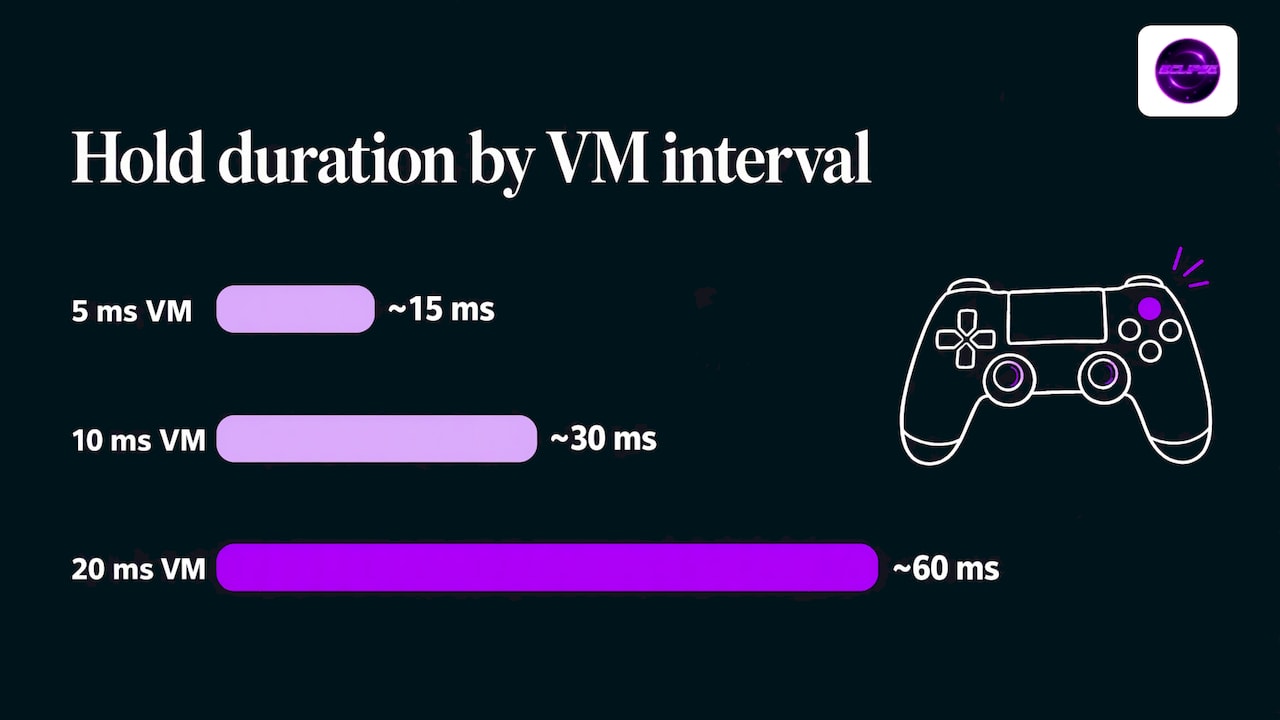
Suppose a script holds a button for three cycles and then releases it. At the default 10ms, that hold lasts about 30ms. If you set VM speed to 20ms, the same three cycles last about 60ms. If you set it to 5ms, the hold shrinks to about 15ms, which a game may not register reliably.
The script's logic did not change at all. Only its clock did. That is why a script written with fixed cycle counts is best left at the interval it was built for, and why scripts that read elapsed time with get_rtime cope better with timing changes.
Does a Cronus Zen give you aim assist?
Not by itself. Aim assist is a feature inside the game, and it responds to controller input. A Zen runs scripts that modify or time the signals your controller sends. Scripts can include aim assist configurations, anti-recoil, movement enhancements and rapid inputs, and each one works through the input signal and how the game responds to it. VM speed sits underneath all of that as the clock.
Know each game's rules before you play
Every game sets its own policy on controller hardware, and it is worth reading before you play online.
- Fortnite. Epic Games' help article on restricted hardware states that hardware providing or intended to provide a competitive advantage is not allowed, and that Cronus Zen and Cronus Max are among the restricted devices. When one is detected, the player gets an in-game warning and must remove the device and restart. Attempts to bypass the restriction result in a permanent ban. Accessibility devices such as the Xbox Accessibility Controller and 3dRudder are supported.
- Call of Duty. Activision's RICOCHET Anti-Cheat Season 02 update, published 2 February 2026, states that unapproved third-party devices like Cronus Zen are not permitted. It also says detections analyze input timing, consistency and response patterns rather than which device is plugged in.
- PC. The official Windows PC guide says the Zen can be used on PC, though official support is not provided for it. You must disconnect the PROG USB cable before starting a game and use licensed console controllers, and you should read each game's EULA, since some PC games may detect, block or penalize third-party devices.
The point for VM speed: input timing is exactly what Activision says its detection looks at. Unusual or unnatural timing patterns are what get noticed, so a non-default interval is not a neutral choice in every game.
Starting from a script that is already tuned
Timing is one of the fiddly parts of working with a Zen. Every cycle count, delay and rapid-input interval in a script relates to the VM interval, so a script is only as good as the care taken over that relationship. Our Fortnite Cronus Zen Script is made for players who want the result without tuning each parameter by hand. It includes aim assist configurations, anti-recoil, movement enhancements, rapid inputs, custom sensitivity settings, an interactive menu and extensive customization options, built on GPC technology and continuously developed, with customer support behind it.
It is a one-off purchase at €34.99. You can see what it includes on the Fortnite Cronus Zen Script page.
The interactive menu matters for exactly the reason covered above: you change options in the menu instead of editing code and then wondering which edit disturbed the timing.
Practical rules for VM speed
- Leave it at 10ms unless you have a reason and can measure the result.
- Never judge a change by feel alone. Read the CPU load in Device Monitor.
- Keep load under 80%.
- Change one value at a time and note what you changed.
- If a script misbehaves after a timing change, restore the default before looking for another cause.
- Remember that frame rate, polling rate and sensitivity are separate things, and VM speed will not fix problems in any of them.
- Check the game's current hardware policy before you play online.
FAQ
What is the default VM speed on a Cronus Zen?
The default is 10ms, according to the official Device Monitor guide. That equals about 100 script cycles per second. The default is chosen for stability, and most scripts are written with it in mind.
Does a lower VM speed make a Cronus script better?
Not automatically. A lower number runs the script more often, but it also gives the Zen more work, and the official guidance says shorter intervals may reduce stability. Check that CPU load stays under 80% after any change, and return to 10ms if the script behaves differently.
Where do I change VM speed?
In Device Monitor, which you open from the Tools menu in Zen Studio. The Zen must be connected to your Windows PC through the PROG USB port for the menu item to work. VM speed adjusts in real time between 1ms and 40ms.
Is VM speed the same as polling rate or frame rate?
No. VM speed is how often the Zen's Virtual Machine runs your script. Polling rate belongs to the controller and platform, and frame rate belongs to the game and your hardware. Changing VM speed does not change either one.
Can Fortnite detect a Cronus Zen?
Epic Games lists Cronus Zen among restricted hardware in Fortnite. When a restricted device is detected, the player receives an in-game warning and must remove the device and restart. Attempts to bypass the restriction lead to a permanent ban, as the Epic Games help article states.
Sources
- Cronus Zen Device Monitor guide
- Cronus GPC overview
- GPC device functions: vm_tctrl
- GPC device functions: get_rtime
- Device, timing, remapper and BVAR built-ins
- Zen Studio menu bar
- Cronus Zen requirements
- Using Cronus Zen on Windows PC
- Epic Games: restricted hardware warning in Fortnite
- Call of Duty: RICOCHET Anti-Cheat Season 02 update